
How to View and Update Printer Allocation
Steps:
- Log in to your account https://admin.pushpos.com/login
- Go to Items > Click the Item you want to view or update
- Look for Prep Printer to see the printer assigned to the item.
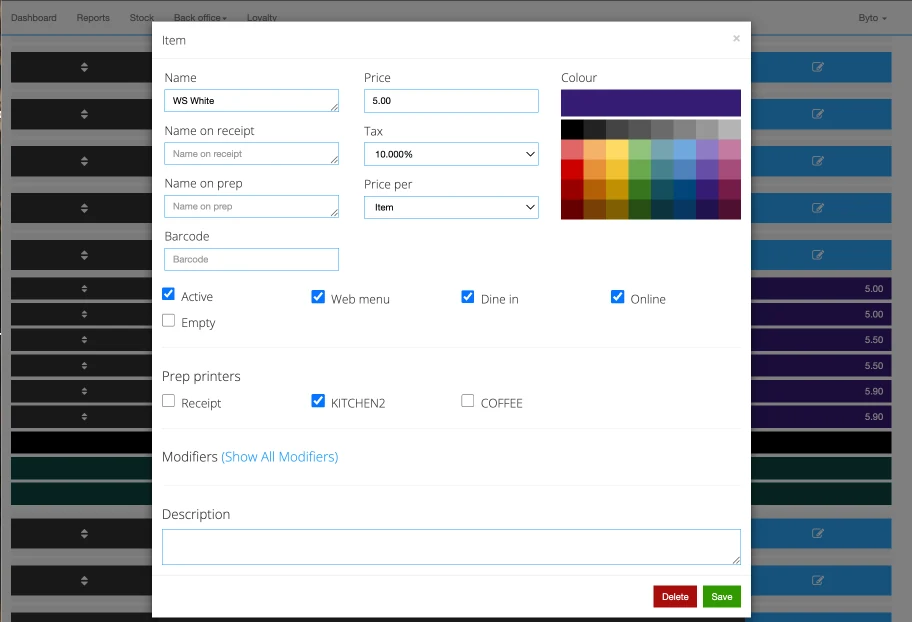
- Checked or unchecked the box to update the printer assignment
- Once changed, click Save
- To view and update multiple menu items, go to Item List
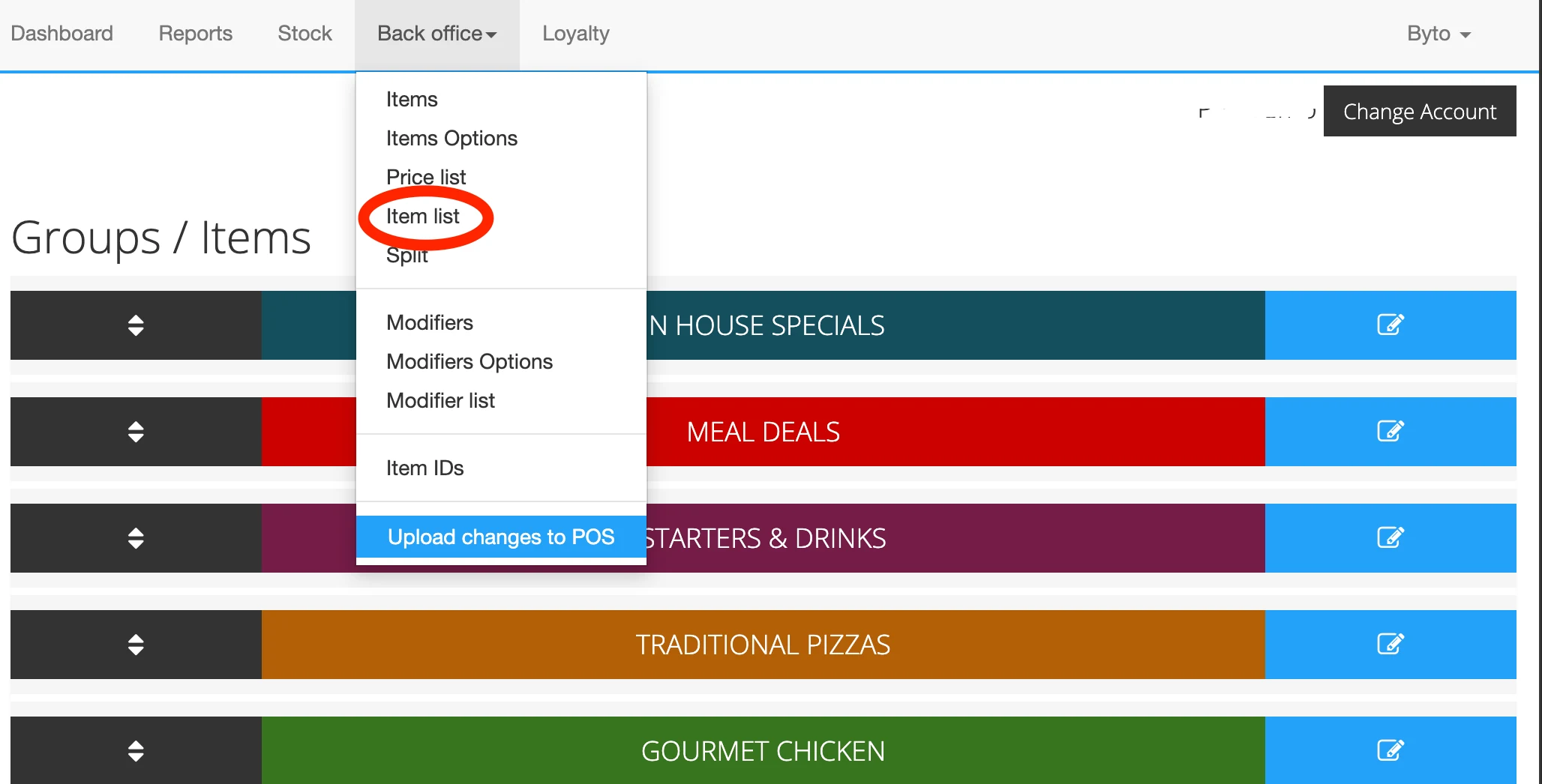
- Enter the Group Name to quickly search for the menu item(s)
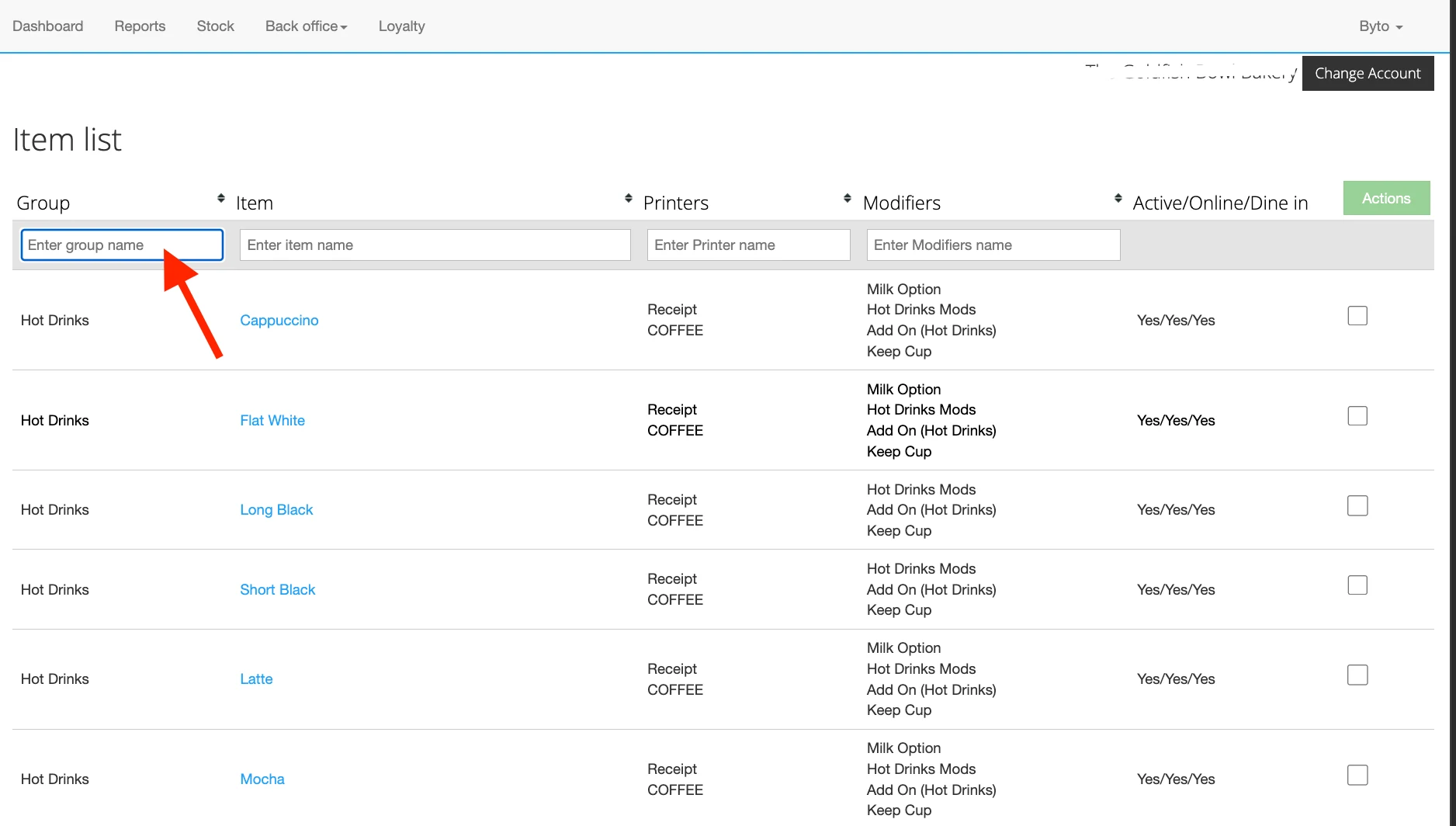
- Look for Printers, here you will see the printer(2) currently assigned to the item.
- To update printer assignments, check the box next to each item you want to change. You can select multiple items at once. When finished, click Action.
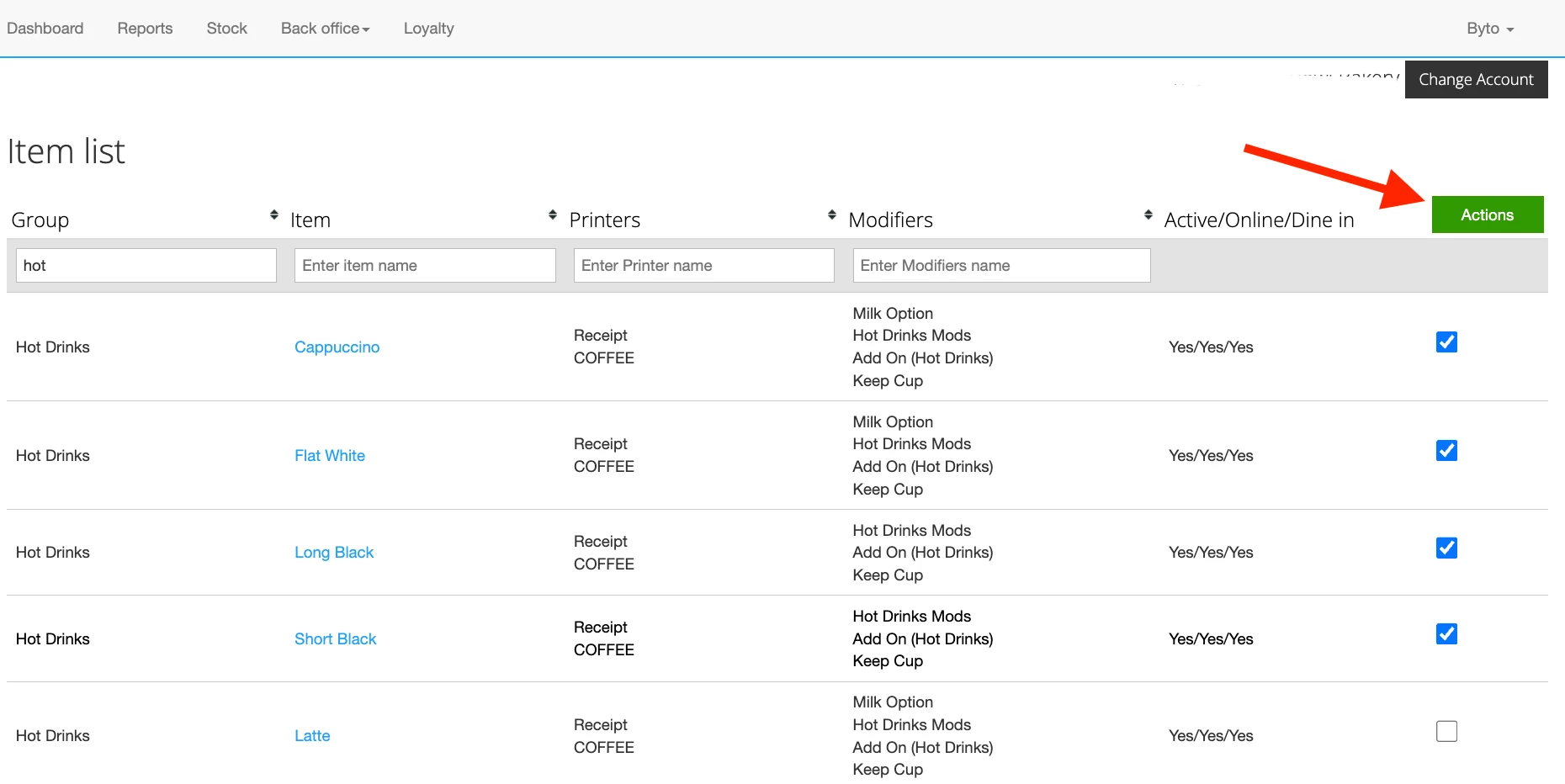
- Navigate to Prep Printer > Check or Uncheck the appropriate printer(s) to update the assignment, and click Save once finished.
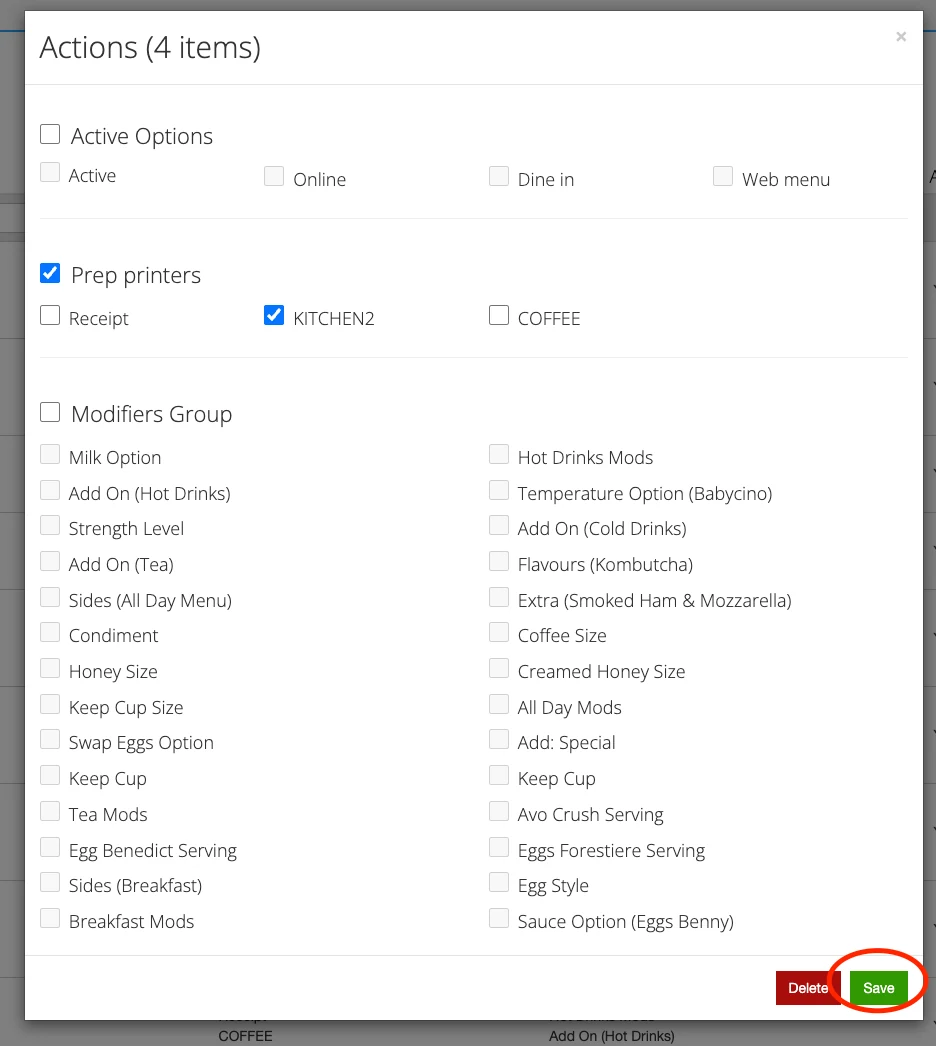
Note to remember: If you are adding a single printer, ensure that all printers that should be assigned to the item(s) are selected. Updating the printer assignment will override the existing settings.\