How to Enable Audio Notifications for Online Orders on POS
Steps
-
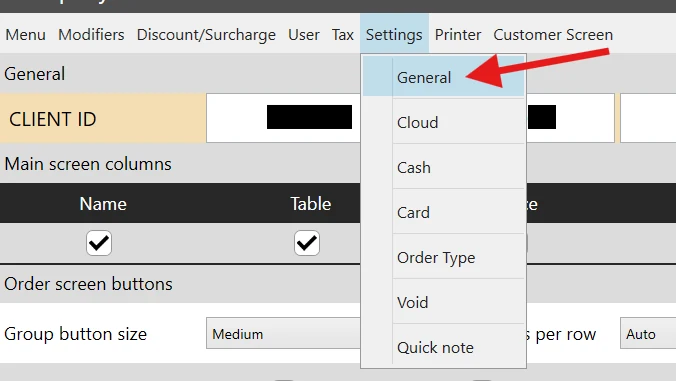
Log in to the Back Office using an Administrator account. Go to Settings > General.
-
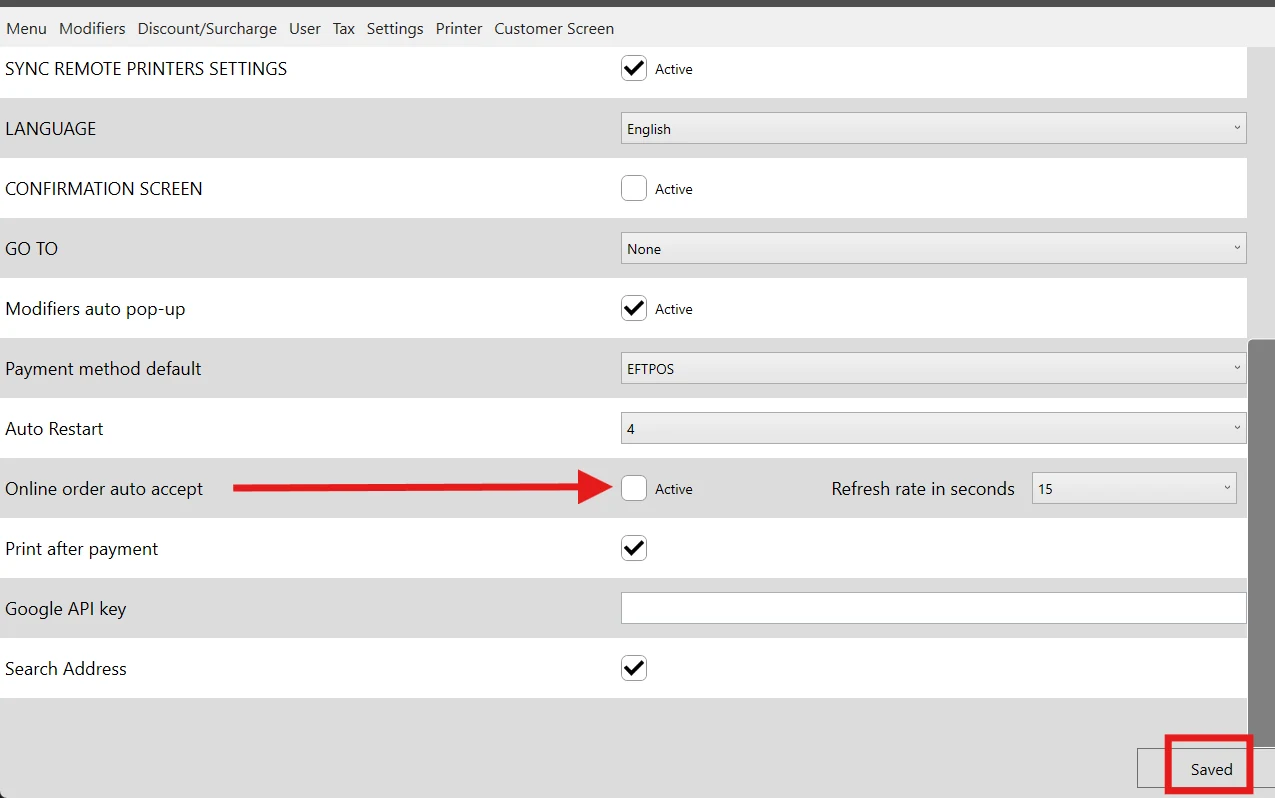
Scroll down to "Online Order Auto Accept" and make sure it is disabled (unchecked). Click Save to apply the changes.
-
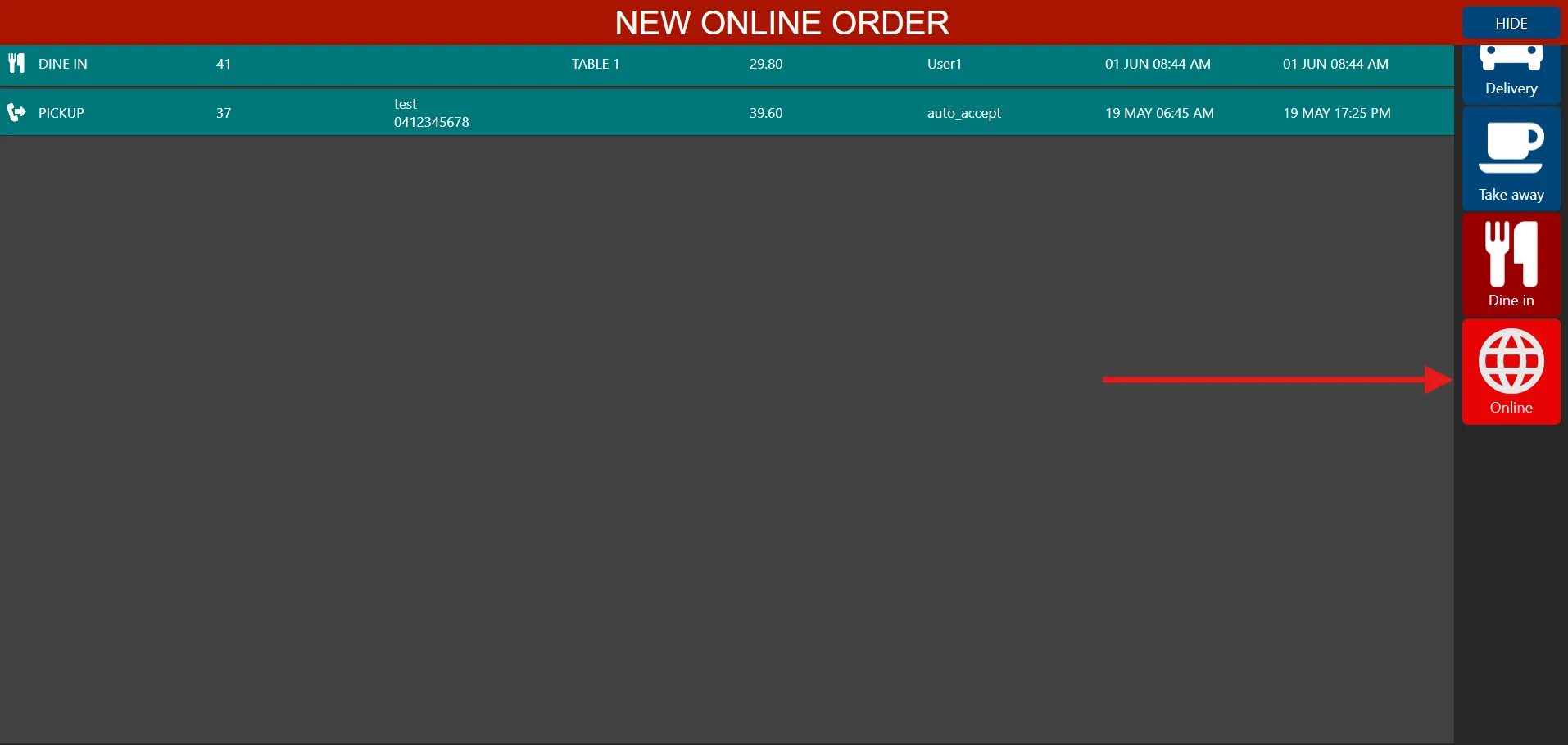
When a customer places an online order, a notification will appear indicating that a new online order has been received. An audio alert will also play. The store can close the notification and click the "Online" service button on the right-hand panel.
-
After clicking "Online", the details of the online order will be displayed. The store can then review and Accept the order.
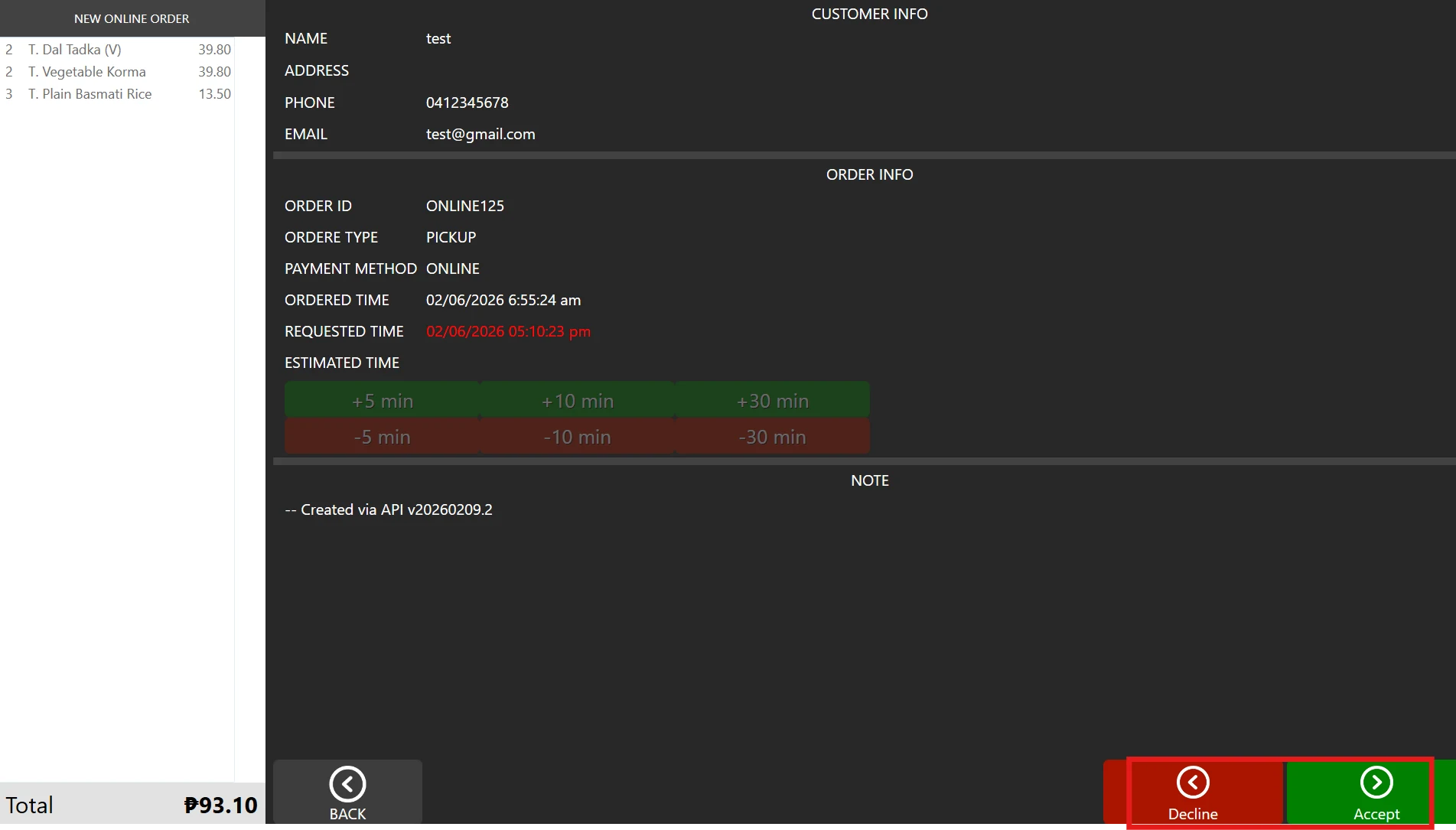
-
Once the order has been accepted, the new order will be added on the Online service button listed on the POS screen.
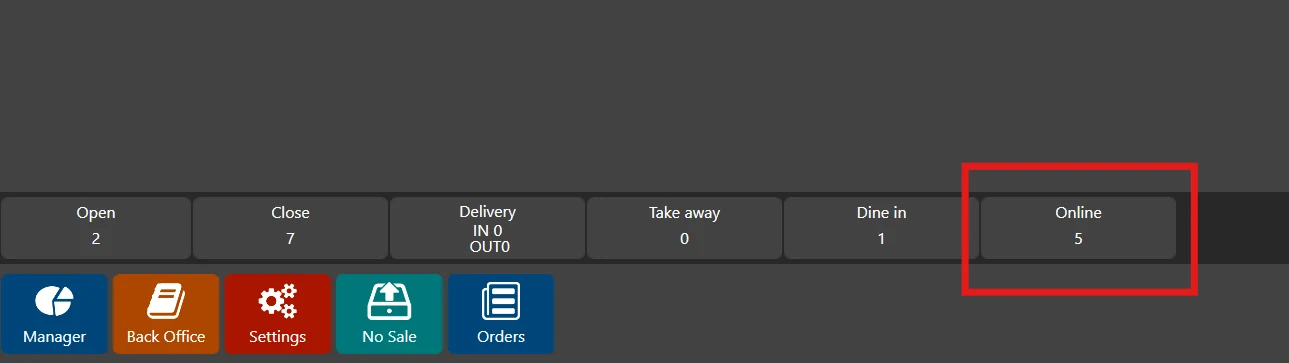
-
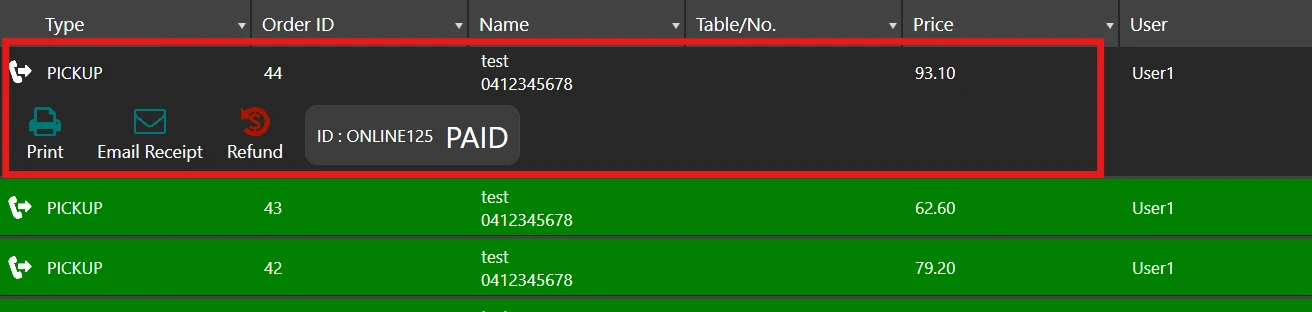
The most recent online order will now be visible in the order list.