
Set up Landing Page
Selecting a location will instantly redirect customers to that store's ordering site.
Here's how to set up a landing page:
- Log in to your account https://admin.localforyoucarts.com/login
- Go to Landing Page

- Fill out the fields under General & Website Sections to set up your Landing Page
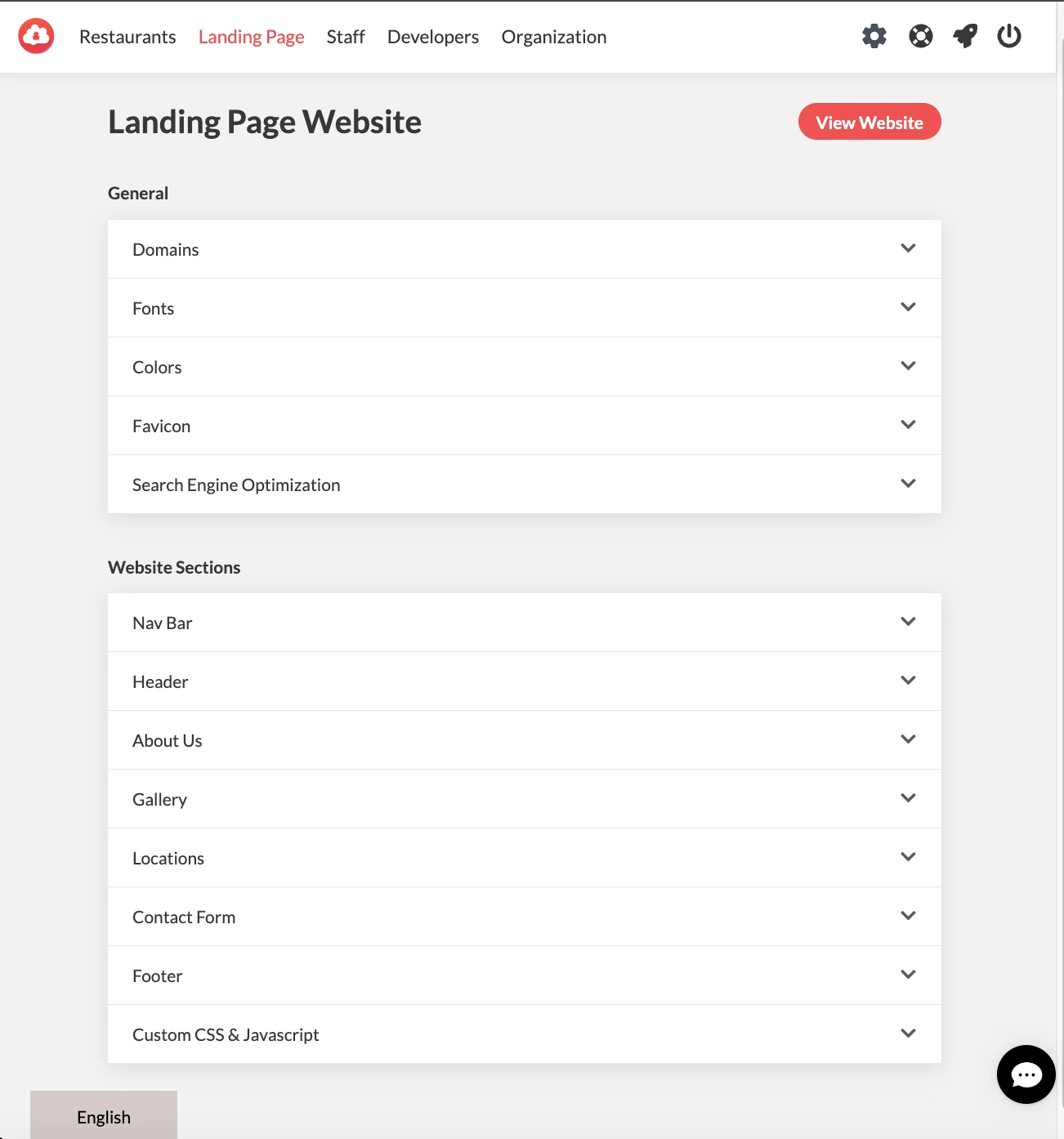
| Field | Description | |
|---|---|---|
| Domain | Enter the sub-domain name where your website be located | |
| Fonts | Use of Google fonts may be prohibited in some countries | |
| Colors | Colors for your website design | |
| Favicon | A square icon that is typically used as an app icon in various contexts across various devices. | |
| Search Engine Optimization | Set of rules you follow to make your website more appealing and understandable to search engines, so they rank your pages higher in search results. | |
| Nav Bar | You can upload your business logo on this section | |
| Header | This image will be stretched across your users screen. It's recommend to use a an image at least 1900x500 pixels. | |
| About US | Use this section to describe your business and tell others about your business. | |
| Gallery | You can upload images for your gallery | |
| Locations | Use this section to show your store's address/ location | |
| Contact Form | Set up a contact form E-mail | |
| Footer | Use this section to add Terms & Conditions and Social Media links | |
| Custom Css & Javascript | Use this section to add custom HTML to your website. Custom CSS should be added to the HTML head |