
How to Mark Items as ‘Out of Stock’
Steps:
-
Log in as Admin at admin.localforyoucarts.com.
-
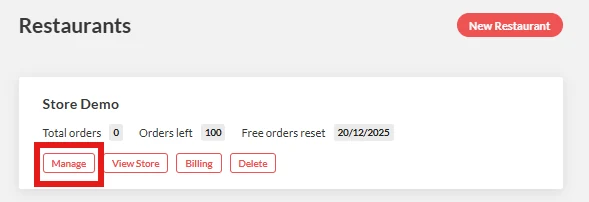
From the list of accounts, select the account you want to update and click “Manage”.
-
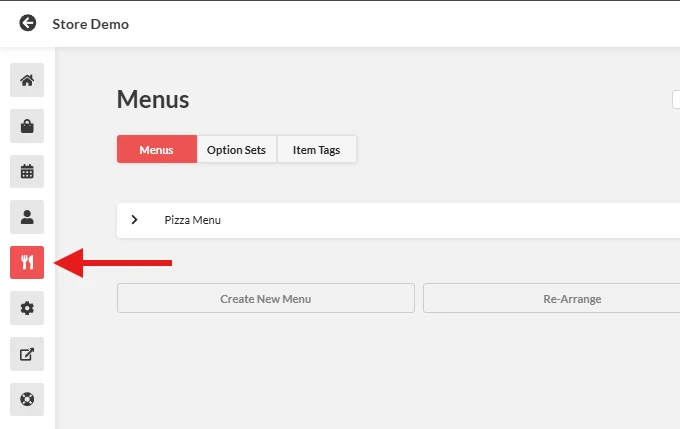
From the left-side menu, go to the “Menus” dashboard.
-
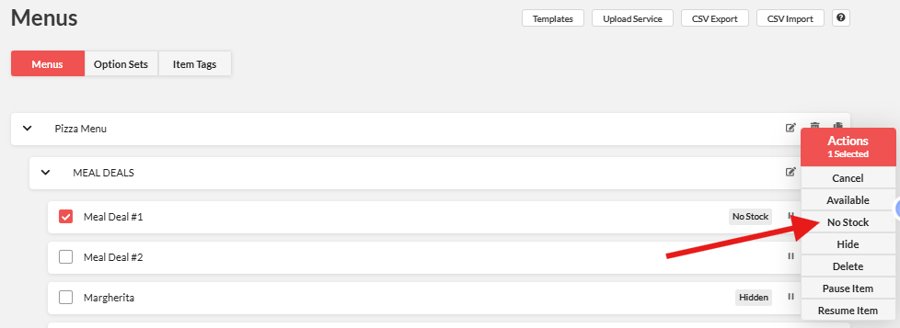
Open your menu and find the item you want to mark as Out of Stock.
-
Tick the checkbox next to the item.
- A popup labeled “Actions” will appear.
-
Select “No Stock”.
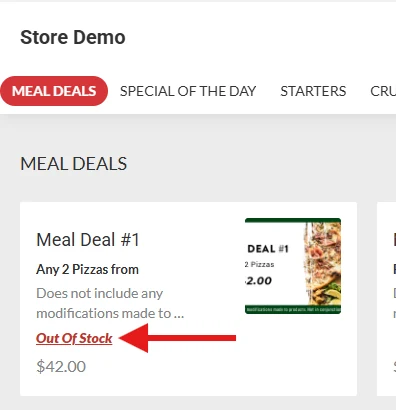
- The item’s status will update on the frontend, and customers will not be able to order it.
-
To switch the item back to active, repeat the same steps and choose “Available”.