How to Enable Menu Age Restricted Access
Learn how to restrict access to certain menu items based on age. This feature ensures that only customers above a specified age can view or order age-restricted items, such as alcohol or other regulated products. Enabling age-restricted access helps you comply with legal requirements, prevent underage purchases, and maintain a responsible business operation.
Steps:
- Log in to your account https://admin.localforyoucarts.com/login
- Go to Settings > Systems > Age Verification.
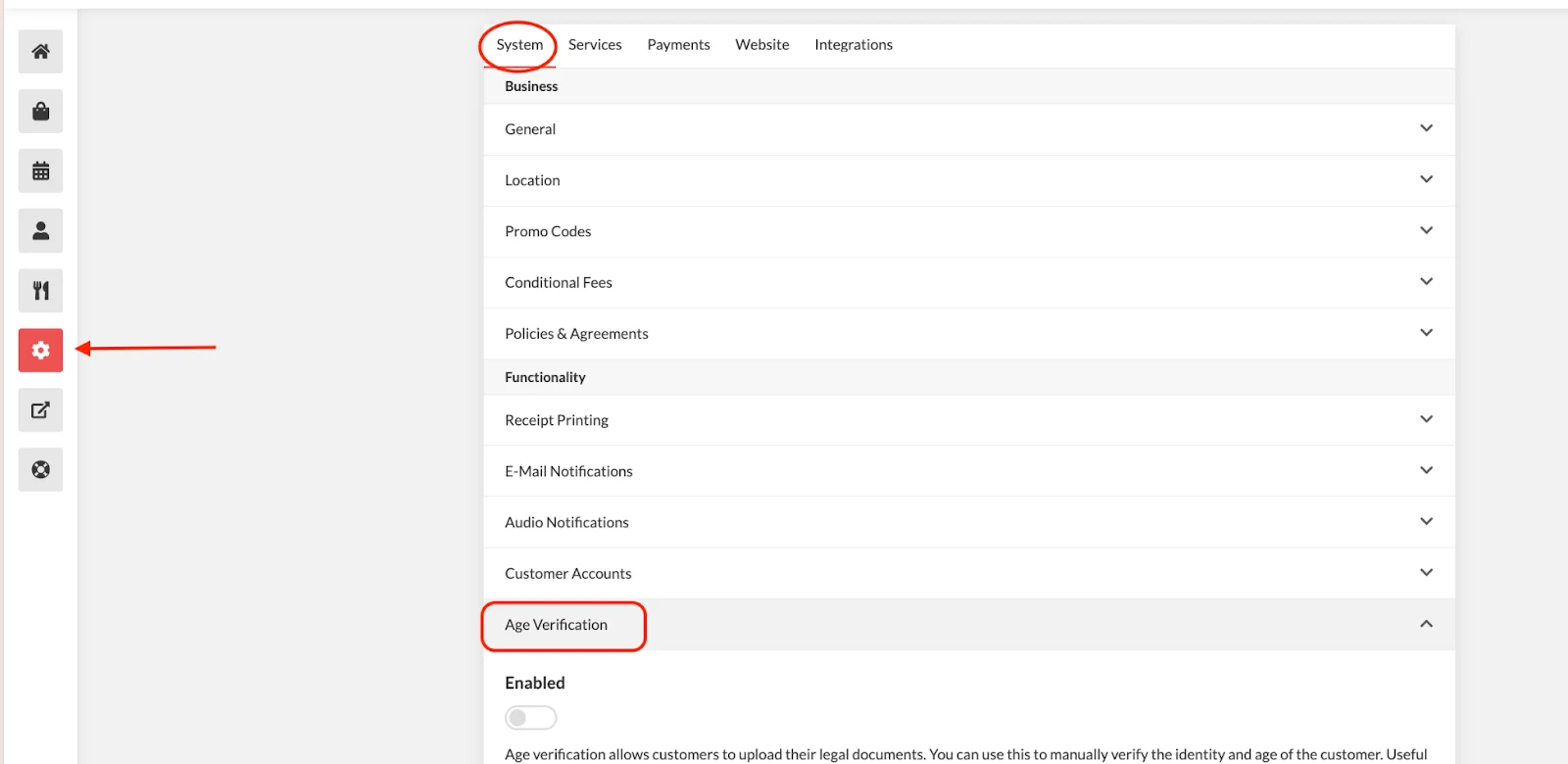
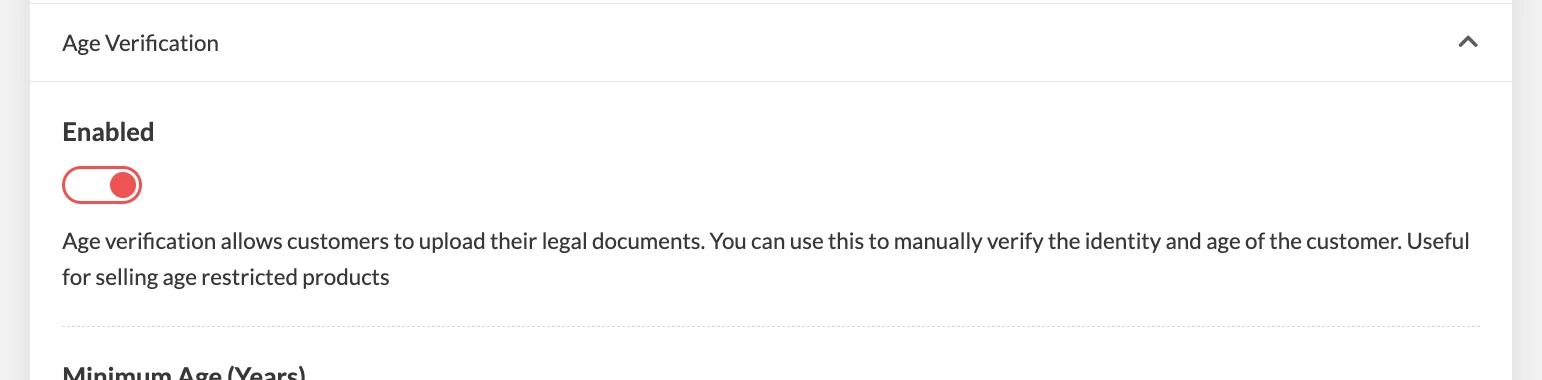
- Enable Age Verification.
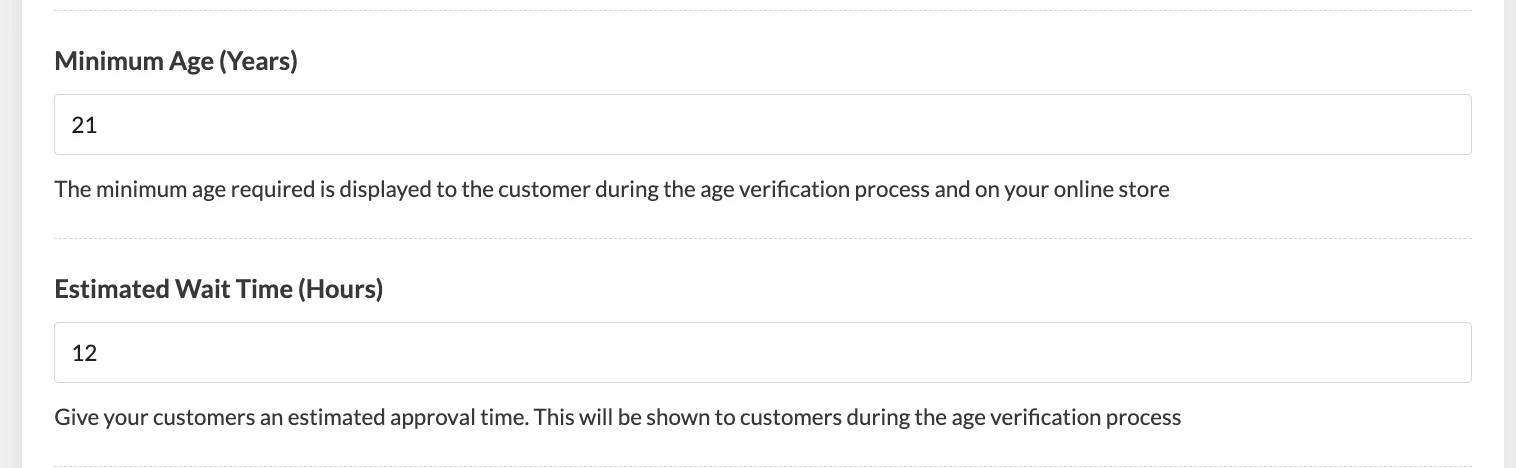
- Enter the Minimum Age and the Estimated Wait Time (in hours) for approval.
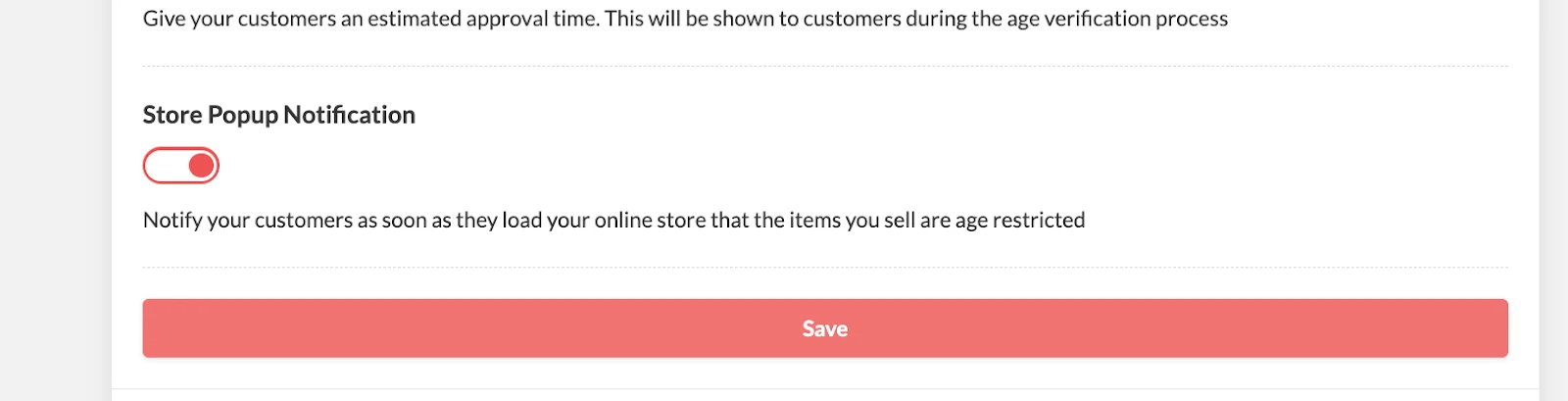
(Optional) Enable Store Pop-up Notification to inform customers immediately when they load your online store that certain items are age-restricted. Click Save.
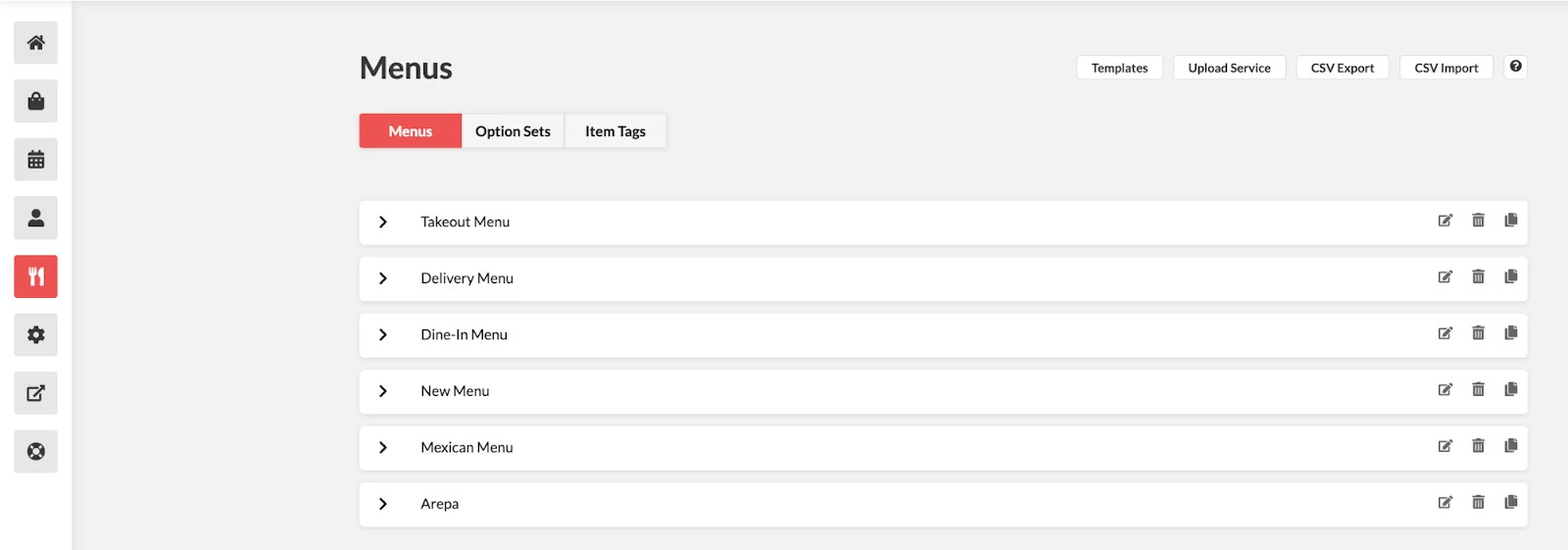
- Go to Menus to enable age-restricted access for specific menu.
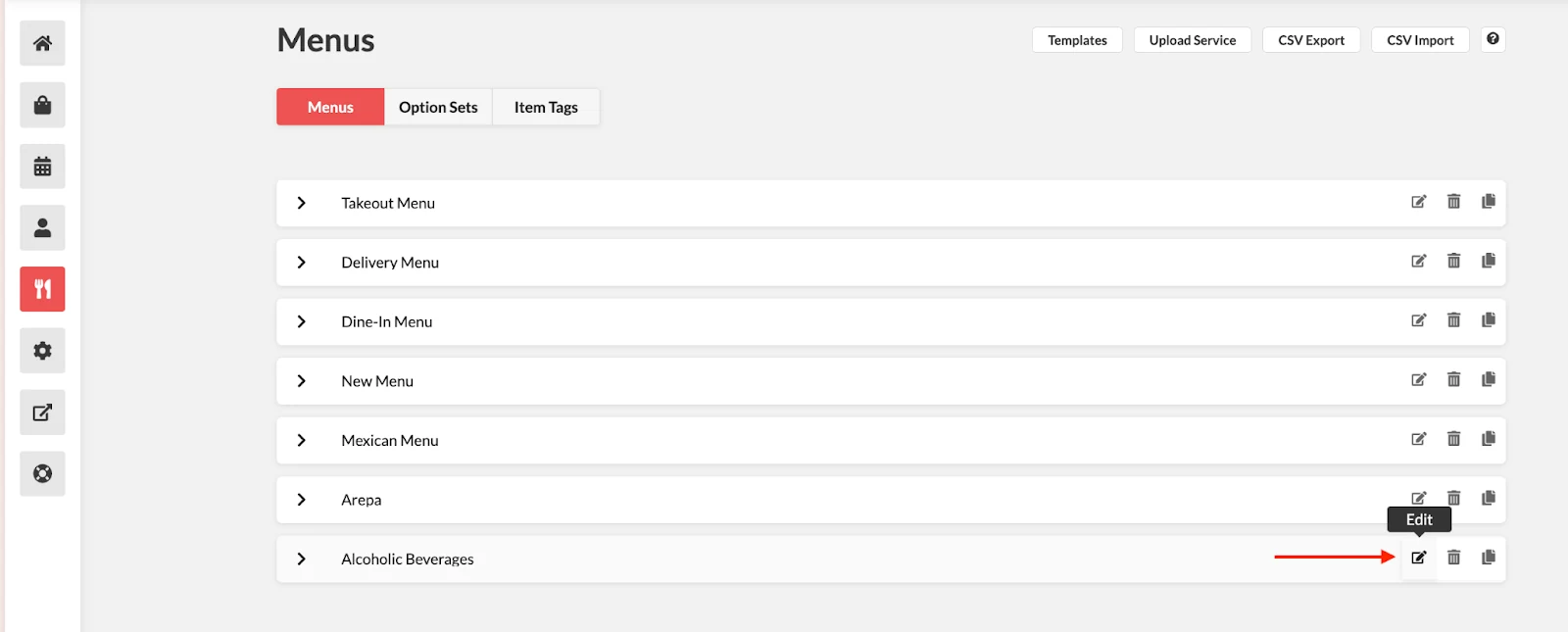
- Open the menu you want to restrict by clicking the Edit icon.
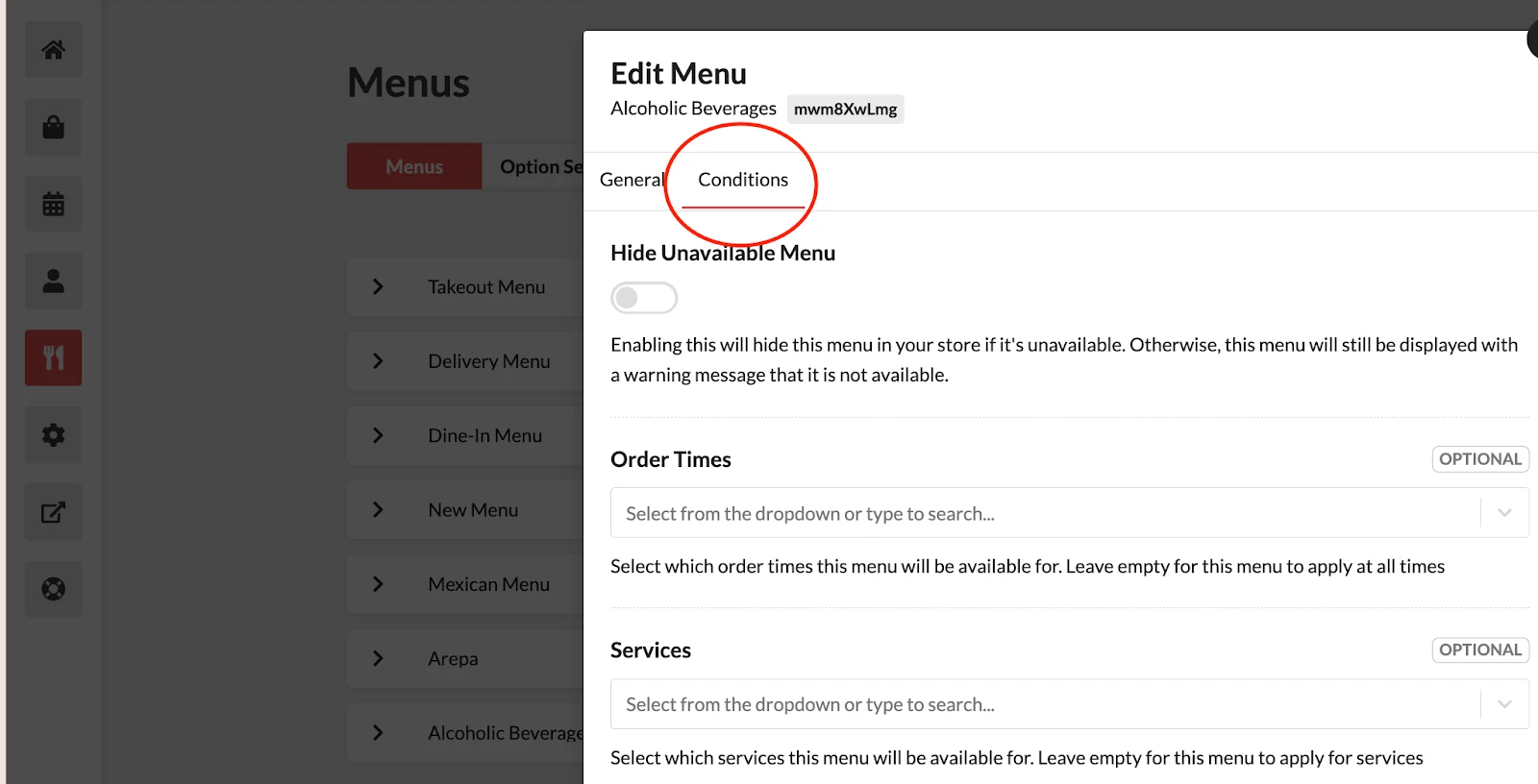
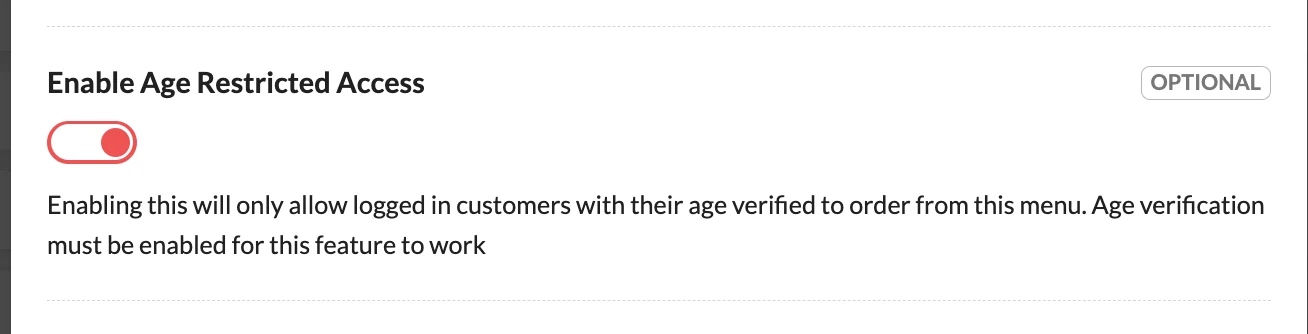
- Go to Conditions, scroll down to Enable Age-Restricted Access, toggle it on, then click Save.
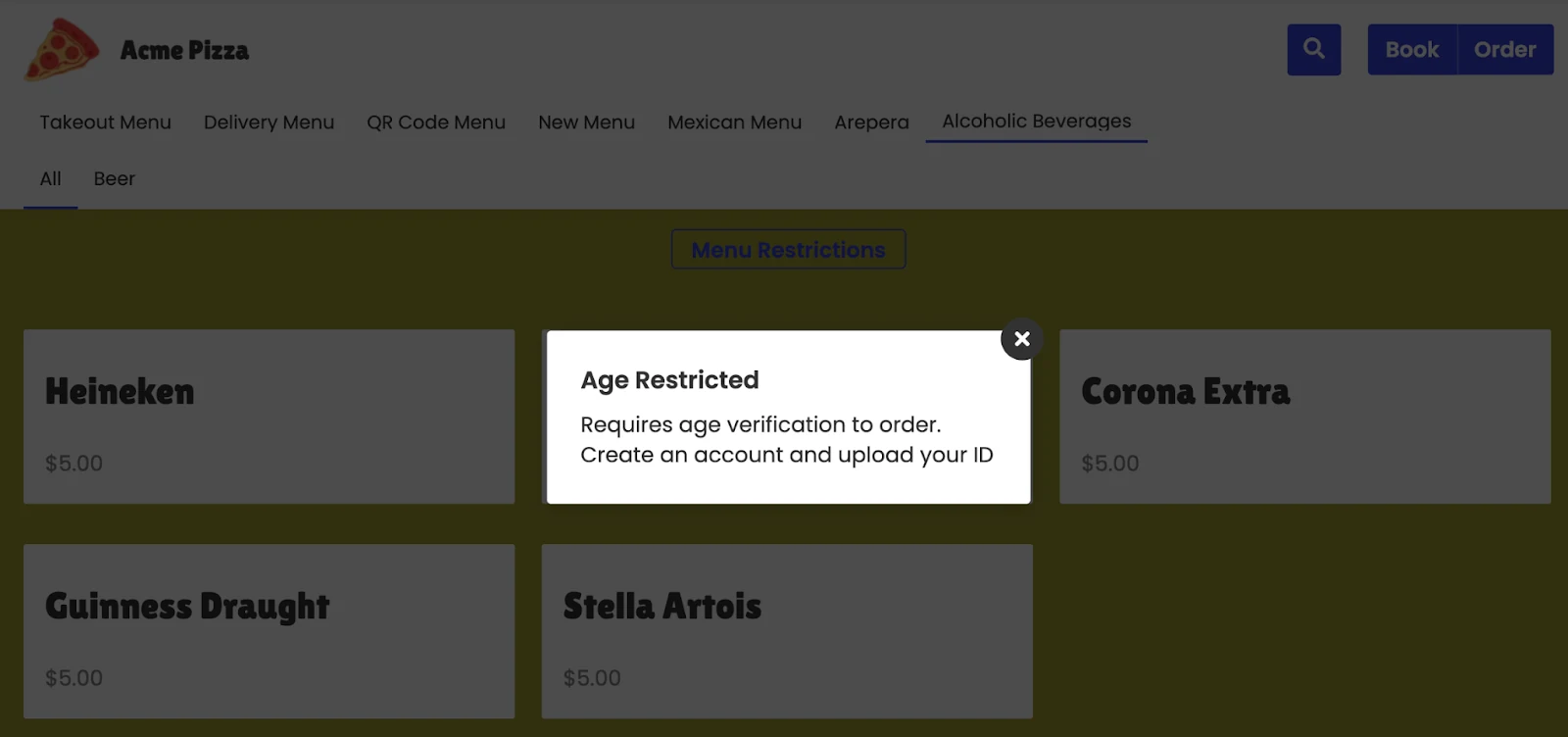
Check your store to verify the changes. A warning message will appear when a customer tries to order an age-restricted item. See example below: